AI Interview Assistant vs. InterviewBee: Which Fits?
AI Interview Assistant vs. InterviewBee compared for Windows live interviews: direct headphone audio, Stealth Mode privacy, window reading, and pricing.
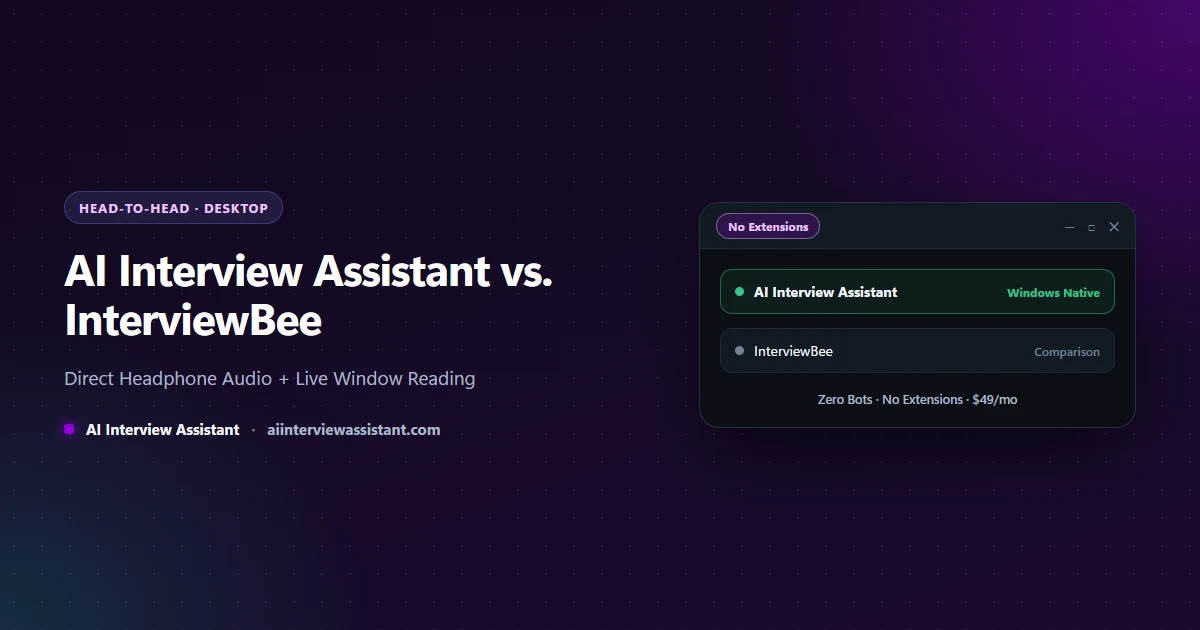
Choosing between InterviewBee and a dedicated AI interview assistant for Windows comes down to where your interviews actually happen and how your audio and screen sharing are set up. Many candidates discover during a live technical round that browser-based assistants struggle with screen-sharing exposure, headset routing, and desktop IDE capture. Below, we compare InterviewBee and AI Interview Assistant across architecture, privacy, audio capture, coding workflows, and pricing.
AI Interview Assistant vs. InterviewBee at a Glance
| Feature / Criteria | AI Interview Assistant | InterviewBee |
|---|---|---|
| Architecture | Native Windows 10 & 11 desktop app (MSIX) | Browser-based / web-session helper |
| OS Support | Windows 10 & Windows 11 (native) | Web / browser environments |
| Screen-Share Stealth | OS-level display-capture exclusion (Zoom, Teams, Meet, Webex) | Browser-overlay or tab-dependent visibility |
| Headphone Audio Loopback | Direct Windows loopback (headsets/AirPods work with zero echo) | Relies on browser tab audio sharing or mic pickup |
| Live Window Reading | Captures any desktop IDE, LeetCode window, or diagram app | Primarily scoped to the active browser tab |
| Pause/Resume & Profiles | Global hotkeys, instant freeze, custom role & resume profiles | Standard browser session controls |
| Pricing Model | Free trial + $49/mo Pro (or 3-Month plan) unlimited | Check current pricing on InterviewBee |
Where InterviewBee Fits Best
InterviewBee positions itself as a lightweight, browser-oriented interview helper designed for quick setup in web-based calls. If your interviews take place exclusively inside a single Chrome tab—such as a Google Meet screening without screen sharing or a casual behavioral chat over laptop speakers—a browser-first tool requires minimal installation. For candidates who prefer a zero-install browser workflow on macOS or ChromeOS and never share their full desktop or switch into native coding IDEs, InterviewBee covers basic live transcription and prompt hints.
However, the moment an engineering interview moves to Zoom desktop, Microsoft Teams, or Webex—or asks you to share your screen while solving problems in VS Code, IntelliJ, or Terminal—browser-bound helpers hit hard OS limitations. As we covered in our guide to Final Round AI alternatives for Windows , web wrappers cannot enforce native display-capture exclusion or tap system-wide WASAPI audio without clumsy workarounds.
Where AI Interview Assistant Wins for Windows Candidates
1. Direct Windows Headphone and AirPods Audio Loopback
One of the biggest practical gaps between a browser tool and a native Windows desktop app is headphone audio. Browser-based helpers often rely on tab-only audio capture—which fails if the interviewer speaks inside the desktop Zoom or Teams client—or force you to unplug your headset and play audio over laptop speakers so the microphone can pick it up. AI Interview Assistant uses direct Windows audio loopback to transcribe the interviewer cleanly from your wired headset, Bluetooth headphones, or AirPods with zero speaker echo or room noise.
2. OS-Level Stealth Mode Across Zoom, Teams, Google Meet, and Webex
When an interviewer asks you to share your full screen during a live architecture review or debugging session, browser extensions and standard web overlays are immediately visible on the shared monitor. In contrast, AI Interview Assistant keeps your workspace invisible across Zoom, Microsoft Teams, Google Meet, and Webex using native Stealth Mode.
3. Live Window Reading for Desktop IDEs and Coding Assessments
Browser-based assistants typically see only the active browser tab, leaving you stranded if an assessment opens in VS Code, JetBrains Rider, Visual Studio, or a local terminal. AI Interview Assistant reads the coding prompt, stack trace, or system-design diagram directly from any Windows desktop or browser window in one click, giving you context-aware solutions without switching tabs or copy-pasting.
4. Pause/Resume Freeze, Custom Profiles, and Unlimited $49/mo Pricing
During intense technical follow-ups, you need to freeze live suggestions with a single global hotkey and configure role-specific instructions plus resume context ahead of time. AI Interview Assistant pairs those desktop workflow controls with a transparent $49/month Pro plan.
Ready to test native Windows audio and display-capture exclusion before your next interview? Download the free Windows installer.
How to Choose Between AI Interview Assistant and InterviewBee
Choosing the right copilot depends on your operating system, audio hardware, and how your target companies run coding or architecture rounds. Choose AI Interview Assistant if:
- You interview on a Windows 10 or Windows 11 laptop and want an official MSIX desktop app instead of browser tabs or extensions.
- You wear Bluetooth headphones, AirPods, or a wired gaming headset and need direct Windows audio loopback with zero echo or virtual cable setup.
- Your interviews involve sharing your entire screen on Zoom, Microsoft Teams, Google Meet, or Webex while running VS Code, Rider, or a local terminal.
- You prefer predictable $49/month unlimited pricing and custom interview profiles rather than short-term credit or session limits.
On the other hand, if you interview strictly inside a non-Windows environment or only want a lightweight browser tab for occasional behavioral practice, InterviewBee may cover your baseline needs. If you are also evaluating other desktop-vs-browser tools, read our breakdown of AI Interview Assistant vs. LockedIn AI.
Frequently Asked Questions
Does AI Interview Assistant show up when sharing my entire screen on Zoom or Teams?
No. AI Interview Assistant runs as a native Windows 10 and Windows 11 desktop application with OS-level display-capture exclusion enabled in Stealth Mode. Whether you share a single browser tab, an IDE window, or your entire primary monitor in Zoom, Microsoft Teams, Google Meet, or Webex, the assistant overlay stays excluded from the screen-share stream. You can also toggle a quick self-test by sharing your screen in a solo test call to confirm the window remains invisible to remote participants.
Do I need virtual audio cables to use AirPods or Bluetooth headphones with AI Interview Assistant?
No virtual audio cables or stereo-mix workarounds are required. AI Interview Assistant captures both your microphone input and the interviewer's voice directly via native Windows audio loopback, even when audio is routed to AirPods, Bluetooth headphones, or a USB headset. That means you keep full privacy in your headphones without speaker echo or browser tab-audio routing failures.
Can AI Interview Assistant read coding problems in VS Code or local desktop IDEs?
Yes. Because AI Interview Assistant runs natively on Windows 10 and Windows 11, it can capture and analyze any open desktop window—including VS Code, JetBrains Rider, Visual Studio, IntelliJ, local terminal sessions, or browser-based HackerRank and CoderPad environments—in one click. You can also pause live listening or freeze the current suggestion using a global hotkey whenever you want to focus on writing code.
How does AI Interview Assistant pricing compare with credit-based interview copilots?
AI Interview Assistant keeps pricing simple with a $49/month Pro Monthly plan (plus discounted multi-month billing) that includes unlimited live interview sessions, Stealth Mode, headphone audio loopback, and custom interview profiles. You can also download the free Windows app first to verify your microphone, headset, and screen-sharing setup before upgrading—while checking InterviewBee's website directly for its current pricing tiers.
When you are interviewing across several companies in the same month—from initial phone screens and live coding assessments to multi-hour system design onsites—having predictable unlimited sessions removes the distraction of watching a minute counter mid-interview. You can rehearse with your real Bluetooth headset, microphone, and local IDE layout days in advance so every audio channel and capture window works reliably before a live panel begins.
Ready to run live technical interviews on Windows with native Stealth Mode, direct headphone audio loopback, and one-click desktop IDE reading? Download the free Windows installer or compare Pro pricing plans.