AI Interview Assistant vs. LockedIn AI for Live Calls
Compare AI Interview Assistant vs. LockedIn AI for Windows 10 & 11: native Stealth Mode, zero call bots, headphone audio loopback, and $49/mo pricing.
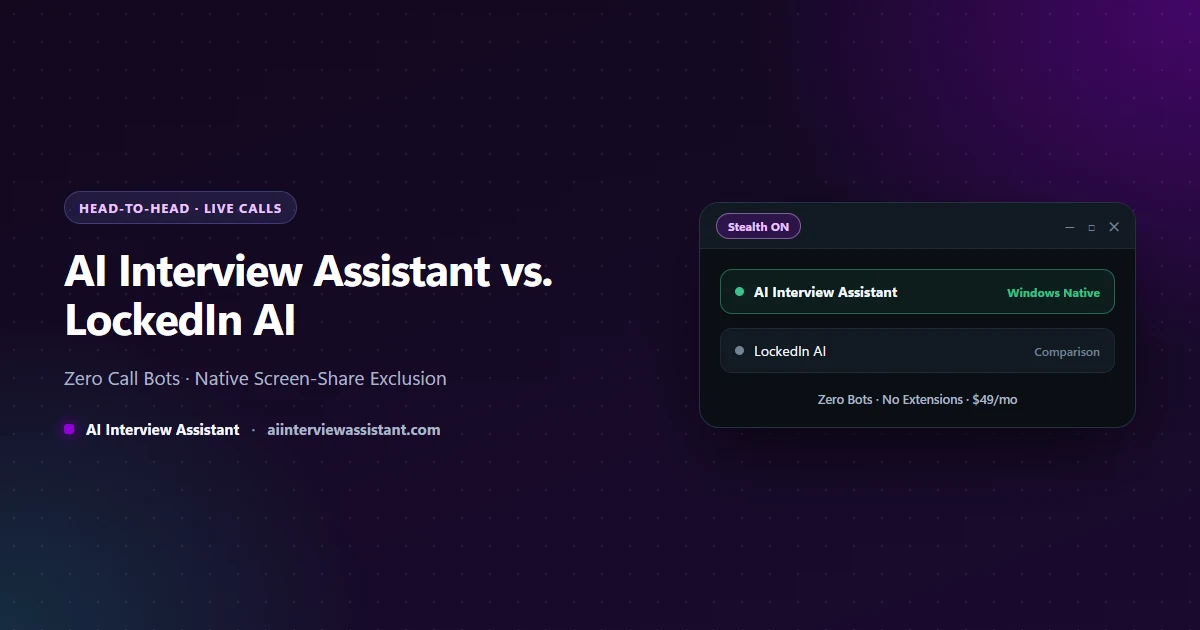
Choosing between AI Interview Assistant and LockedIn AI matters most when your live interviews run on Windows 10 or Windows 11 inside desktop Zoom, Microsoft Teams, Google Meet, or Webex. Both platforms aim to give candidates real-time support during behavioral, coding, and system design rounds, but they take very different engineering paths. Selecting a reliable real-time AI interview assistant for Windows depends on whether you want a native Windows desktop application with OS-level screen-share exclusion and direct headphone audio capture, or a browser-centered copilot workflow.
Quick Verdict and Side-by-Side Comparison
If you interview primarily on Windows 10 or 11 and want predictable $49/month unlimited access with zero Chrome extensions, zero meeting bots, and native Windows display-capture exclusion, AI Interview Assistant is built specifically for that setup. Here is how the two platforms compare across the capabilities that decide live call reliability:
| Capability | AI Interview Assistant | LockedIn AI |
|---|---|---|
| Architecture | Native Windows 10/11 desktop app (MSIX) | Browser-centric web app & desktop companion |
| OS Focus | Built exclusively for Windows 10 & 11 | Cross-platform web & Chrome-oriented workflow |
| Meeting Bots / Extensions | Zero bots, zero Chrome extensions | Browser extension / tab-sharing workflow |
| Screen-Share Privacy | Native Windows display-capture exclusion (Stealth Mode) | Requires browser-tab or desktop-mode workarounds |
| Headphone Audio | Direct Windows WASAPI loopback (AirPods, Bluetooth, USB) | Tab-audio or system-mixer configuration needed |
| Live Window Reading | Instant capture of coding IDEs, whiteboards & docs | Screen/tab capture dependent on call setup |
| Pause/Resume & Prompts | Live Pause/Resume freeze + custom role/resume prompts | Copilot prompt presets & session controls |
| Pricing Model | Unlimited $49/month Pro (or $99 / 3 months) | Credit/time-metered tiers & higher monthly plans |
Where LockedIn AI Fits Best — and Where Windows Friction Appears
LockedIn AI is a well-known browser-centered interview copilot with solid support for web-based prep, role presets, and cross-platform convenience. If your interviews run exclusively inside a Chrome browser tab on macOS or you primarily want an in-browser companion for mock sessions, a web-first tool can cover the basics without requiring a dedicated desktop package.
Friction starts when your real interviews move into desktop Zoom, Microsoft Teams, Google Meet, or Webex on Windows 10 or Windows 11. In those calls, relying on Chrome tab sharing, browser extensions, or layered desktop workarounds introduces unnecessary risk when an interviewer asks you to share your full monitor or switch between an IDE and an architecture diagram. Candidates comparing browser-first copilots in our Final Round AI alternatives for Windows guide often report the exact same display-capture and audio-routing headaches.
5 Reasons Windows Candidates Choose AI Interview Assistant Over LockedIn AI
1. Native Windows 10 and 11 MSIX Architecture
AI Interview Assistant installs as a signed Windows 10 and Windows 11 MSIX desktop application rather than relying on a Chrome extension or floating browser tab. That means there are zero call bots joining your meeting roster, zero browser-tab audio permissions to re-grant between rounds, and consistent low-latency rendering even while running Docker, Visual Studio Code, or a heavy browser benchmark alongside your video call.
2. OS-Level Stealth Mode Across Zoom, Teams, Meet, and Webex
When an interviewer asks you to share your entire desktop rather than a single window, browser-based overlays and unexcluded windows become a liability. AI Interview Assistant applies OS-level Windows display-capture exclusion so your assistant window stays completely invisible to Zoom, Microsoft Teams, Google Meet, Webex, and screen recorders. You can inspect how native Windows Stealth Mode works across full-screen desktop shares before ever joining a live call.
3. Direct Windows Audio Loopback for Headphones and AirPods
Many candidates wear AirPods, Sony Bluetooth headphones, or a USB headset during technical interviews so interviewer questions never echo back into the microphone. Browser copilots often require sharing a specific Chrome tab with audio enabled or routing cables through third-party mixers. AI Interview Assistant reads Windows WASAPI audio loopback directly from your active playback device, capturing crisp interviewer speech with zero virtual-cable setup.
4. Live Coding Window Reading, Pause/Resume Freeze, and Custom Prompts
Technical rounds require more than audio transcription. AI Interview Assistant reads coding editors, LeetCode prompts, SQL consoles, and system-design whiteboards directly from your screen, and lets you hit Pause or Resume at any moment to freeze the overlay while you think or talk through trade-offs. You can also load custom system prompts tailored to your target role, resume, and tech stack so responses match your actual engineering experience.
5. Predictable $49/Month Unlimited Pricing vs. Metered Credits
Interview loops routinely stretch across three to six weeks of recruiter screens, coding rounds, and panel loops. Instead of counting minutes or buying top-up credit bundles, AI Interview Assistant offers an unlimited Pro Monthly plan at $49/month (or $99 for a 3-month pass) with a free trial to verify your setup first. We also break down how flat monthly pricing compares against metered tiers in our Parakeet AI comparison guide for candidates planning multi-week interview sprints.
Ready to verify native Windows Stealth Mode and flat pricing before your next interview? Compare transparent Pro pricing plans or download the free Windows app to test everything on your own desktop.
How to Test Both Tools Safely on Your Own Windows Setup
Never wait until a live final round to discover how an assistant behaves with your headset or screen share. Before choosing between AI Interview Assistant and LockedIn AI, run this four-point check on your Windows 10 or Windows 11 laptop:
- Run a private Zoom or Microsoft Teams call with your actual AirPods or Bluetooth headset to confirm interviewer speech is transcribed cleanly with zero microphone echo.
- Share your entire primary Windows monitor—not just a single browser tab—and inspect a local recording to confirm the assistant window stays hidden.
- Open Visual Studio Code or a live coding prompt alongside the call and measure how accurately the assistant reads on-screen code and architecture diagrams.
- Toggle Pause/Resume and switch custom role or resume prompts mid-call to verify there is no audio dropout or window clutter.
Frequently Asked Questions
Does AI Interview Assistant join Zoom or Microsoft Teams calls as a bot?
No. AI Interview Assistant never joins your call as a bot participant and does not install a browser extension. It runs locally as a native Windows 10 and Windows 11 desktop application, captures interviewer audio directly from your Windows audio session, and keeps your workspace private during live Zoom, Microsoft Teams, Google Meet, and Webex calls.
Is Stealth Mode really invisible when sharing my entire Windows screen?
Yes. Because AI Interview Assistant uses native Windows display-capture exclusion rather than a floating Chrome overlay, Zoom, Teams, Google Meet, and Webex screen shares omit the assistant window even when you share your entire monitor.
Can I use AirPods or Bluetooth headphones during a live call?
Yes. AI Interview Assistant captures system output directly through Windows audio loopback, so interviewer audio coming through AirPods, USB headsets, or Bluetooth headphones is transcribed accurately without routing through virtual cables.
How does AI Interview Assistant pricing compare with LockedIn AI?
AI Interview Assistant offers an Unlimited Pro plan at $49 per month or $99 for 3 months, plus a free Windows tier to test Stealth Mode and headphone audio first. You never lose minutes to strict credit packs or surprise top-ups.
Ready to switch from browser copilots to a native Windows interview assistant? Download the free Windows installer or unlock unlimited live interviews, native Stealth Mode, and headphone audio on Windows when you compare Pro pricing plans.