Interview Tech Check 24 Hours Before: A Timed Test Plan
A 30-minute rehearsal to run the day before your interview: room, camera, mic, speakers, platform, screen share and a backup connection, with a record sheet and a pass/fail rule.
Run a full dress rehearsal 24 hours before the interview: join a test call from the same room, on the same device, with the same headset and network you will use, and check camera, microphone, speakers, screen share, the interview platform and a backup connection. An interview tech check 24 hours before the call is early enough to replace a broken headset or install a driver, and late enough that what you test is what you will use. Write down what worked, then repeat only the short checks on the morning of the interview.
Why 24 hours, not 24 minutes
The point of moving the check a day early is the fix-it window. A driver update, a replacement headset or a borrowed laptop needs an evening, not five minutes before the call. When something fails at 9am on interview day, your only options are the ones you already have in the room.
Split the work into two piles:
- Test a day early: every device, the network, the platform, the room and the seat, the screen-share view, and the fallback connection.
- Save for the morning: final volume level, notifications off, closing stray tabs, and a quick camera and mic check in the app.
The split matters because the two piles fail differently. A wrong microphone is a settings problem you can fix in a minute on the day. A missing driver or a dead headset is not.
The one-page record sheet
Fill this in as you go, on paper or in a note you can open without the interview app. Every row gets a result and, where it applies, the fallback.
| Item | What you used | Result | Fallback |
|---|---|---|---|
| Device | Laptop model | Pass / Fix by tonight | Phone for audio only |
| Camera | Which camera was selected | Pass | None needed if audio works |
| Input | Headset model and port | Pass / Fix by tonight | Laptop mic, tested |
| Output | Headset or speakers | Pass | Phone earbuds |
| Network | Wi-Fi name and test numbers | Pass | Phone hotspot |
| Platform | App and version | Pass | Dial-in number |
| Screen share | What you shared | Pass | Send the file by email instead |
A filled-in example for a fictional candidate, so you can see what "done" looks like:
- Device: Windows laptop, the same one used for the interview.
- Input and output: USB headset, selected in both Windows and the meeting app.
- Network: home Wi-Fi, tested at the interview hour; result recorded on the sheet.
- Fallback: phone hotspot, tested once, with the switch written down.
- Platform test call: passed. Screen share: passed.
- One item marked "fix by tonight": the headset was not selected in the meeting app, only in Windows.
That last row is the reason to do this a day early. It is a two-minute fix now and an avoidable scramble later.
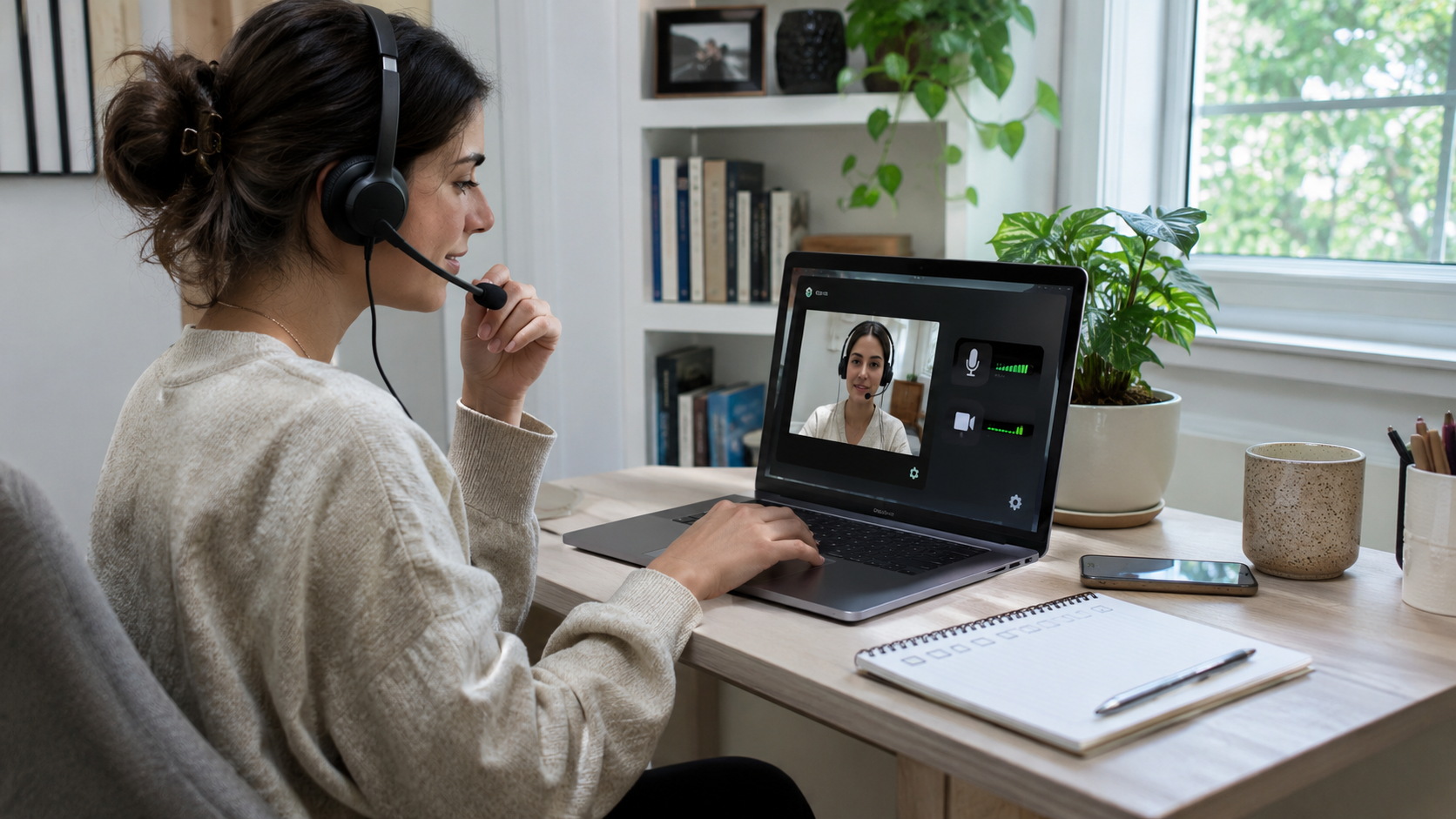
Rehearse in the exact room and seat
Join the test call from the chair and desk you will use. Lighting, echo and background differ by room, and a kitchen or a sofa tells you nothing about the desk where the real call happens.
Look at what is behind you at the camera's actual angle, not standing up and leaning over the laptop. Check the door behind you and any window for glare and for traffic noise. Sit down, open the test call and look at the preview as the interviewer will see it.
The common mistake is testing on the sofa with the laptop's built-in microphone, then sitting at a desk on the day with an external monitor and a different microphone. The room changed, the audio path changed and nothing you tested still applies. Test where you will sit, with the equipment you will use there.
Camera, microphone and speaker, in that order
Work through the three in sequence, because each one changes what the next sounds or looks like.
- Camera: confirm the right device is selected, the frame shows head and shoulders, and the picture is not backlit by a window. If you look like a silhouette, move the light in front of you.
- Microphone: record a 30-second clip of yourself answering "tell me about yourself" and play it back. Listen for level, echo and keyboard noise. Speaking a real answer rather than "testing, one two" exposes the keyboard taps and the chair creak you would otherwise miss.
- Speaker or headset: play the clip back at the volume you will use. You should hear it clearly without pushing the slider to maximum; if you need full volume, something is wrong with the output device or the clip.
The mistake that catches people is leaving the laptop's built-in microphone selected while wearing a headset. The headset is on your head, so it feels connected, but the app is still listening to the laptop across the desk. Fix it by selecting the headset in both the operating system and the meeting app; the two have separate settings and one does not follow the other. If you are on Windows, this calm remote interview setup checklist covers the system side, and this walkthrough shows how to test system audio in ten minutes.
Test the platform, not just your devices
A camera preview inside the app's settings page proves the camera works. It does not prove you can join the call.
Join the platform's own test meeting, or call a friend on the same app, and check each of these:
- The join link opens and puts you where you expect, including any waiting room.
- Screen share works, and you have shared once.
- Chat works, so you can type if audio fails.
- If the interview uses a coding pad or a shared document, open it inside the test call and type one line to confirm you have edit permission, not just view.
Share your screen once and open the document or editor you might show. You learn what the other side sees, including which windows and tabs are visible in the picker. That is worth knowing before the day.
Measure the connection and line up a backup
Run a speed and latency test in the interview room at the interview hour, and write the numbers on the record sheet. Testing at the same time of day matters because home networks are busier in the evening than at midday, and a connection that worked last week tells you little about the hour you need.
Then prepare a phone hotspot as the fallback. Test it once, and write down how to switch the laptop to it in under a minute. The steps are short and easy to forget under pressure: turn on the hotspot, open the laptop's Wi-Fi list, connect, wait for the app to reconnect. Save the interviewer's dial-in number or link offline as well, in case the app will not load at all. A fuller version of this sits in the guide to a plan for when the call drops.
Close the privacy and notification gaps
Silence your phone, chat and calendar pop-ups, and turn on do-not-disturb for the interview window. A notification banner over a shared screen is the kind of thing nobody plans for and everybody remembers.
Close personal tabs and windows you would not want on a shared screen, and look at what a screen share would expose. Review the meeting app's camera, microphone and screen-recording permissions before the day, not during the call; a blocked permission mid-interview costs minutes you do not have.
The 30-minute rehearsal schedule
Put this on a timer. Thirty minutes is enough when you follow the order, and stopping at the end keeps the check from turning into an evening of fiddling.
- 0–5 min, room and seat. Sit in the interview chair, check the background at camera angle, the door and the window.
- 5–12 min, camera, mic and speaker. Select each device, record the 30-second answer, play it back at working volume.
- 12–20 min, platform test call. Join, check the waiting room, share your screen once, open the shared document or coding pad and type a line.
- 20–26 min, connection. Run the speed and latency test at the interview hour, then switch to the hotspot once and back again.
- 26–30 min, notifications and permissions. Do-not-disturb on, stray tabs closed, app permissions reviewed, record sheet finished.
The decision rule for a failed check
Use one rule and stop negotiating with yourself: if a core item fails and cannot be fixed by the evening, switch to the tested fallback now rather than hoping on the day.
Core items are the ones the interview cannot run without: microphone input, audio output, the ability to join the platform, and a working connection. Camera and screen share are important but recoverable; a call can continue with audio only, and a document can be sent by email if sharing fails.
If the fallback is a phone hotspot, the rule means you plan to interview on the hotspot, not to try the home Wi-Fi again at 9am. If the fallback is a borrowed laptop, test that laptop on the same evening so the fallback is not itself untested.
If the call drops: a short script
Keep this on the index card next to you. It is calm, honest and short, which is what the other side needs.
"My connection just dropped. I'm rejoining now, and if I don't appear within two minutes I'll call the dial-in number on the invite."
Type the same thing in the chat if you can get back into the app quickly. When you rejoin, do not spend a minute apologising: say you are back, confirm you can hear them, and pick up from the last question. Interviewers have seen this before, and a composed recovery reads better than a flawless call that never happened.
Write the fallback card and stop testing
One index card, five lines: the platform link, the dial-in number, the hotspot name, the headset model and the sentence you will say if the call drops. Keep it where your hand falls, not in a file on the laptop that may be the thing that fails.
Then close the laptop. The remaining preparation is your answers, not your cables. If you want a rehearsal structure for the answers themselves, the mock interview checklist takes the setup as done and moves on to the practice.
Frequently asked questions
Should I do the tech check on the same laptop I will use, or is a phone test enough?
Use the same laptop, in the same room, with the same headset. A phone test proves the network reaches the internet but tells you nothing about the laptop's microphone selection, the app's permissions or how screen share behaves. Test the device you will actually interview on, and test the phone only as the hotspot fallback.
What if my interview is on a platform I cannot test in advance?
Test what you can control. Check your camera, microphone and speakers in any app that uses them, confirm your browser or the installer works, and read the platform's joining instructions for the waiting room and any download. Then keep the dial-in number and a phone as fallbacks, and join ten minutes early on the day so a surprise has time to surface.
How do I test my setup if I have no one to call?
Use the platform's own test meeting if it has one, and otherwise record a 30-second clip of yourself answering a real question and play it back. Many meeting apps also let you join alone to see your own preview. Screen share is the one item that is easier with a second person, so a short call with a friend on the same app is worth arranging.
Is it worth testing a backup internet option if my connection has never failed?
Yes, because the value is in the switch being practised, not in the odds. Turning on a hotspot and reconnecting takes under a minute if you have done it once and much longer if you are reading menus for the first time. Test it during the rehearsal, write down the steps, and you remove a whole category of interview-day panic.
Rehearsing for interview day? See how AI Interview assistant works.