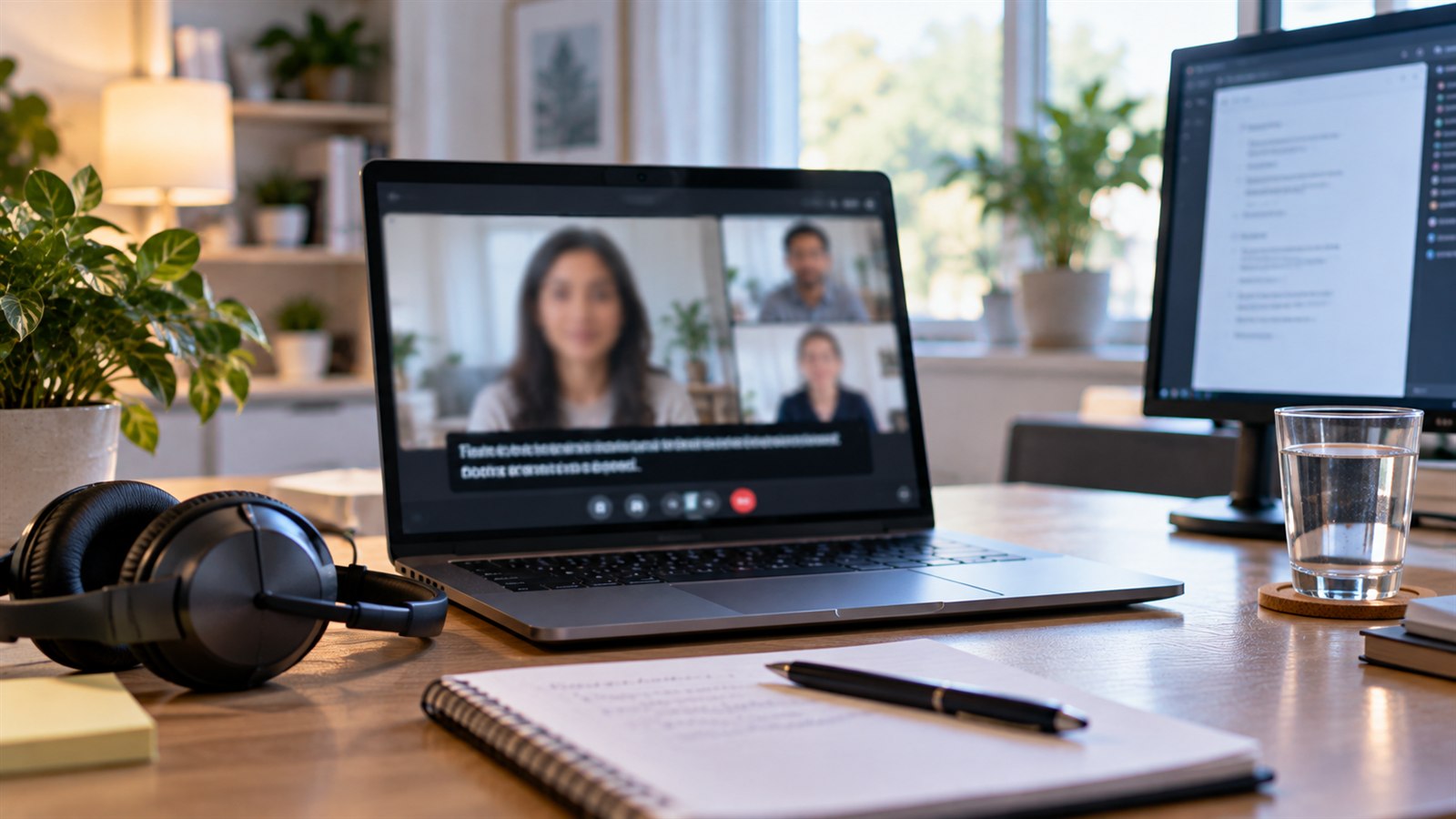
Webex Interview Tips: Set Up Before the Call
A Webex-specific walkthrough: set your account, audio, camera and sharing defaults, run a 24-hour test meeting, and keep a one-page card for the call.
Treat Webex as three separate setups: your account and device settings, how the meeting behaves when you join, and what you share on screen. Fix them in that order, run a full test meeting with a second device 24 hours before, then re-check for five minutes an hour before. Most problems in a Webex interview come from the join sequence and the sharing defaults, not from the camera. These webex interview tips work through each layer, then give you a timed drill and a recovery script.
The three Webex layers to set before interview day
Layer 1: account and device settings. Your display name, default microphone and speaker, and camera choice live in your Webex profile and app settings. Set them once, in advance, so the join screen shows the right person and the right devices.
Layer 2: meeting behaviour. When you join, decide whether you arrive muted, whether video starts on, and how you enter the meeting room. Joining muted with video on is the calm default: the panel sees you, and nothing from your room reaches them until you choose to speak.
Layer 3: sharing defaults. Decide in advance what you will share and who can share. In Webex you can share a whole screen or a single application window, and the difference matters more than any other setting in this article.
Why the order matters: a fix at layer 3 is wasted if layer 1 picks the wrong microphone. You can share the perfect window and still lose the first answer to a laptop mic that picked up the room. Work down the layers, not across them.
Name, photo and the join screen the panel sees
Set your display name to the name on your application. A nickname, a device default such as "DESKTOP-7K2", or an old work alias reads as unprepared before you have said a word. The host sees the participant list; the panel may see it too.
Check your profile photo and status message. A blank photo is safer than a casual one, and clear any status line you would not want read out.
Worked example: two candidates join the same meeting. The first appears as "DESKTOP-7K2" with no photo. The host has to ask, "Sorry, who is this?", waits for the answer, and then repeats the opening question the candidate has already half-answered, so the first answer starts twice. The second appears as "Priya Raman", matching the application, and the host says, "Priya, thanks for joining. Tell us about your current role." The second candidate answers once, in full, with the panel listening from the first word. Same meeting, same skills; one spends the opening on identification, the other on the interview.
Audio: pick the device once and lock it
Open the Webex audio settings before the interview and select the microphone and speaker you will actually use. Then test them, either with the built-in audio test or by starting a test meeting and speaking into it.
Use headphones rather than laptop speakers. Speakers feed the panel's voices back into your microphone, so they hear an echo of themselves, and the echo makes people talk over each other. Headphones remove the loop and let both sides speak naturally.
Mistake: joining with the laptop microphone while your phone sits on the desk with Bluetooth on. If your laptop picks up the phone as an audio device, or the phone's notifications reach the room, turn Bluetooth off, re-select the headset in Webex settings, and test again. Menu names and options vary by app version, so check them in your own settings rather than assuming.
If the panel cannot hear you, keep it to one line: "I think my audio has dropped on your side. Give me ten seconds to switch to my phone." Then use the dial-in number or the phone audio option on the join screen. A short, calm script beats a long apology, and it keeps the panel's attention on the interview rather than the glitch. For a deeper audio check, see how to test system audio before an interview.
Camera, framing and the five-minute light check
Put the camera at eye level, sit so the frame runs from your shoulders up, and keep a plain wall behind you. Light should come from in front of you, not behind.
Turn virtual backgrounds off for interviews. The edge flicker around your head and shoulders is distracting, and the blur can hide your hands and notes, which makes you look static. A plain wall costs nothing and looks deliberate.
Worked example: a candidate sits with a bright window behind them. The camera exposes for the window, so the face is a silhouette and the panel sees a dark shape against white. The same candidate turns the desk lamp to face them and closes the blind: now the face is lit and the wall behind is ordinary. The room did not change; the light direction did.
Test the camera in the same room at the same time of day as the interview. Light changes through the day, and a setup that worked at noon can fail at four. If you want a fuller check, the remote interview setup checklist for Windows covers the rest of the desk.
Screen sharing: share the window, not the desktop
When Webex asks what to share, choose a single application or window rather than the whole screen. A shared desktop carries every tab, notification and open window with it; a shared window shows only that window. The exact share options depend on your app version, so look at the list before you click.
Before the call, close or move anything you would not want on camera: messaging apps, personal tabs, and notes that mention other companies. The panel is not looking for them, but they are on screen if you share the desktop.
Worked example, before and after. Before: the candidate shares the whole desktop for a case exercise, and a personal browser tab with a shopping basket sits in the tab bar, next to a note titled with a competitor's name. After: the candidate shares only the document window, and the panel sees the case document and nothing else. Same document, same answer, no accidental disclosure.
If you are asked to share and you are not ready, buy ten seconds without looking flustered: "Yes, give me a moment to open the right window so you only see the document." Then share the window. The pause reads as care, not hesitation.
Webex interview tips: the 24-hour test meeting drill
Start a test meeting from the same laptop and the same network you will use, and join it from your phone as the second participant. Run the checks in this order, because each one depends on the one before:
- Join. You reach the meeting room in under a minute and see the second device in the participant list. Pass: no error, no waiting on a download.
- Name. The participant list shows the name on your application. Pass: the exact display name, no device default.
- Audio out. The phone hears you clearly at normal speaking volume. Pass: no dropouts, no room echo.
- Audio in. You hear the phone's voice through your headphones. Pass: clear, and you can hear it while you speak.
- Video. Your camera shows your face and shoulders with a plain background. Pass: face lit, frame steady, no virtual background.
- Share. Share one window and confirm on the phone that only that window is visible. Pass: no other tabs, no desktop.
- Chat. Send a message from the phone and read it on the laptop. Pass: text arrives and is readable.
- Rejoin. Leave the meeting and join again. Pass: the same devices are still selected and you are back in under a minute.
Record what worked on a one-page card. The card is the point of the drill: on interview day you read it, you do not remember it.
PRE-INTERVIEW CARD
Display name:  Priya Raman
Microphone:    Headset mic (USB)
Speaker:       Headset
Camera:        Built-in, eye level
Join link:     [meeting link from the invitation]
Dial-in:       [number and access code from the invitation]
Fallback:      Phone with Webex app, Bluetooth off
Copy the join link and dial-in number from the invitation itself. If a step fails, use the fallback for that layer: audio fails, switch to the phone; video fails, join with audio and say so; sharing fails, describe the document and offer to email it after the call.
The last five minutes before you join
Close every other app that uses the camera or microphone. A background call or recorder holds the device, and Webex then reports the device as in use; closing the other app fixes it.
Join two to three minutes early, muted, with your camera on. If the host has put you in a waiting room, use the time to check your framing and your card; if you land straight in the meeting, you are already set up.
Keep the one-page card and a charged phone within reach for the audio fallback. Then stop adjusting. If the test meeting failed on any layer, fix that layer before the interview, not during it.
Book thirty minutes for the drill
If a layer failed in the test meeting, fix it before the interview, not during it. A wrong microphone or an unshared window is a five-minute fix the day before and a lost answer on the day. Book thirty minutes today to run the drill and fill in the card; that is the only preparation this article asks of you. For the wider hour before the call, use the pre-interview checklist for the last hour.
Frequently asked questions
Can I join a Webex interview from a phone if my laptop fails?
Yes, in most cases. The invitation usually includes a dial-in number and access code, and the Webex mobile app can join the same meeting. Keep the phone charged and the app signed in before the call, and turn Bluetooth off so the audio routes to the phone itself. Tell the panel in one line that you are switching devices.
Does Webex show the interviewer if I switch tabs during the call?
Only if you are sharing your screen or a window. When nothing is shared, switching tabs is invisible to the panel, though your attention may show on your face. When you do share, share a single window rather than the desktop so the other tabs never appear in the shared view.
What should I do if the interviewer asks me to share my screen and I have never used Webex before?
Say yes, then use the share control in the meeting toolbar and pick the single window you want to show. If you cannot find it, say so plainly and ask which button they mean; hosts answer that question often. Practising the share once in a test meeting removes the surprise.
Is it okay to use a virtual background in a Webex interview?
It is allowed, but a plain wall is the safer choice. Virtual backgrounds can flicker at the edges of your head and shoulders, and a blur can hide your hands and notes, which makes you look still. If your room is untidy, turn your desk so the camera faces a bare wall instead.
How do I stop Webex from starting my video automatically when I join?
Look for a video-on-join option in the Webex app settings before the meeting and turn it off if your version offers one. Then join muted with your camera on, and check the setting held in a test meeting. If the option is not there, switch the camera on as soon as you enter.
Preparing for a Webex interview? See how AI Interview assistant works.