Zoom Interview Tips: Settings and Etiquette That Matter
A Zoom-specific checklist for interview day: the three settings to fix first, camera and light in five minutes, waiting-room and gallery-view etiquette, and a two-minute self-test.
Set three things before a Zoom interview: a stable connection with a backup plan, a camera at eye level with light on your face, and audio tested through the exact headset or microphone you will wear. Then keep the etiquette plain — join a few minutes early, stay muted until you speak, look at the lens when you talk, and treat the waiting room as part of the interview. The zoom interview tips below are ordered by when you do them, so you can work down the page the night before and again five minutes before the call.
The three Zoom settings to fix first
Open Zoom on the computer you will use, not on your phone, and set these before anything else.
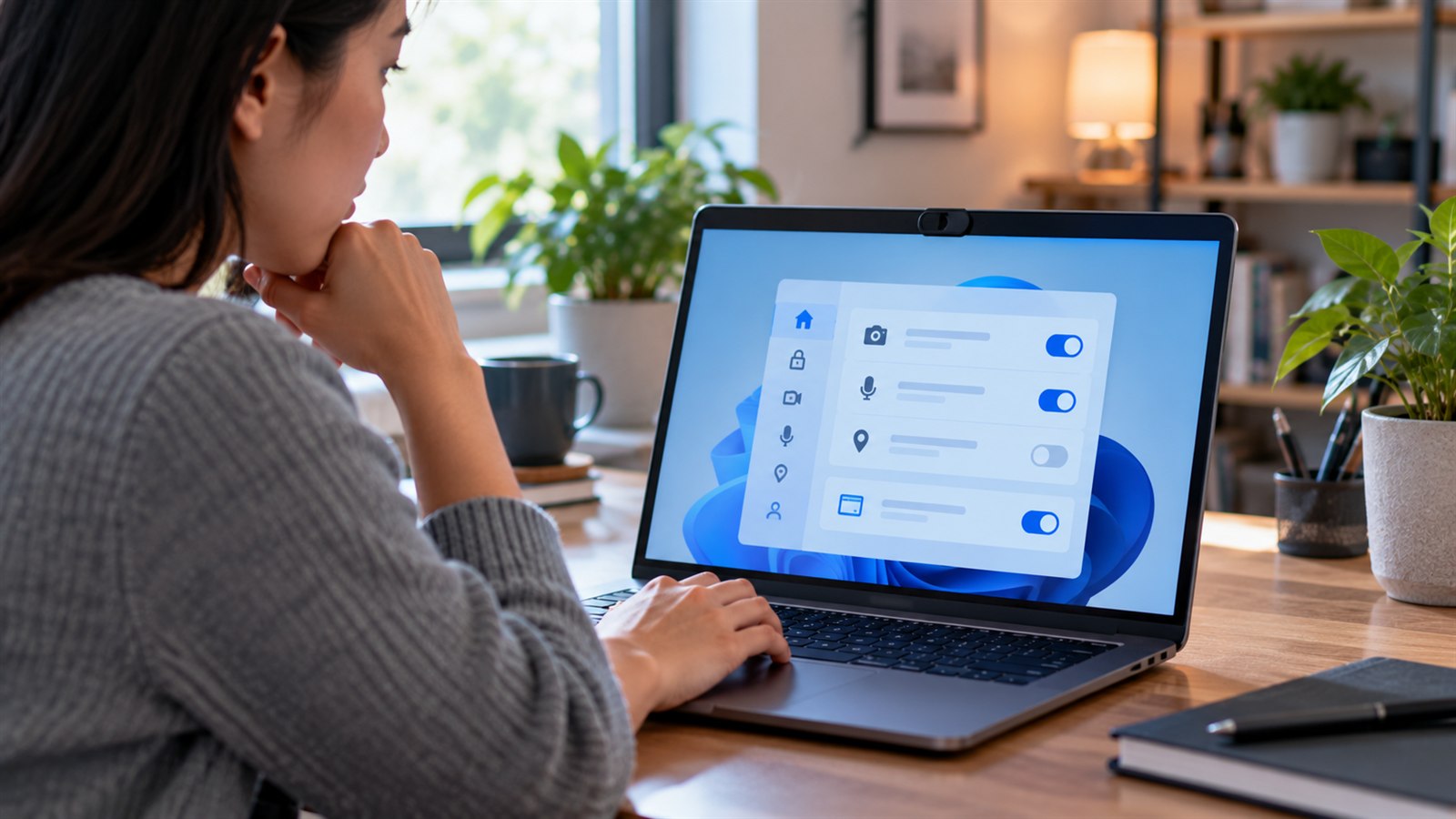
- Audio. Go to Settings, then Audio, then Test Speaker & Microphone. Pick the exact headset or microphone you will wear from the dropdown rather than leaving the system default. The default can switch to a laptop's built-in mic the moment you plug something in, and the interviewer hears the difference before you notice it.
- Video. Go to Settings, then Video, and check the preview. Turn off "Mirror my video." Mirroring flips the preview left to right, so anything with text behind you — a name badge, a poster, a whiteboard — reads backwards to you and correctly to the interviewer. Turning it off means the preview matches what they see, so you frame against the real image.
- Account defaults. In Settings, then Video, turn on the option to start with your video on when you join (the label varies by version). In Settings, then Audio, turn on the option to join muted. Video on and mic muted is the safe arrival state: they can see you are present, and nothing you say to yourself while waiting reaches the room.
If your audio still misbehaves after the test, work through how to test system audio before an interview before changing anything else.

Camera height, light and framing in five minutes
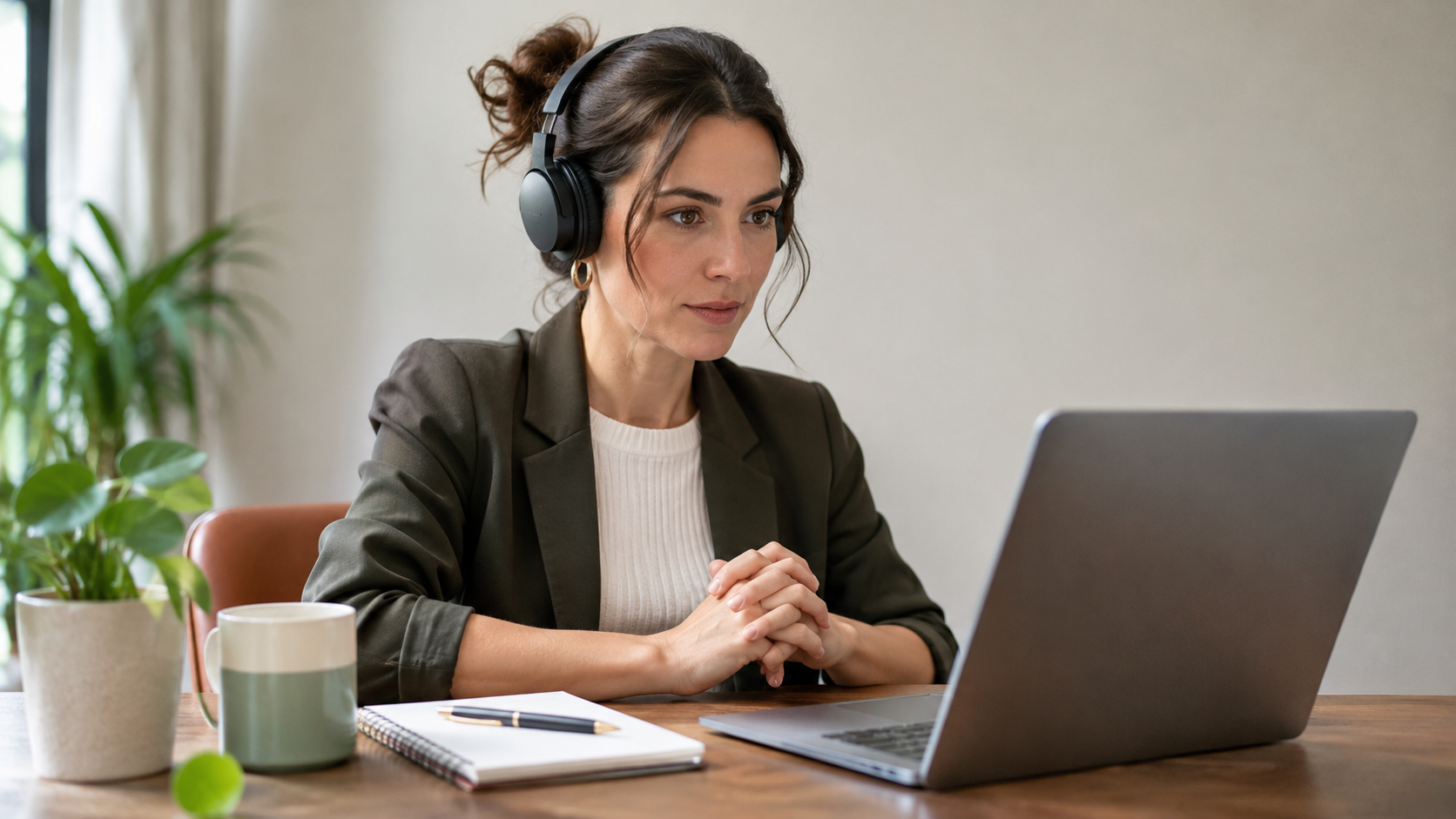
- Height. Raise the laptop until the lens sits at eye level. A stack of books works. Looking down at a camera reads as looking down at the interviewer, and it also catches the ceiling light in your glasses.
- Light. Put a window or a lamp in front of you, never behind. A bright window at your back turns you into a silhouette, and no software setting fixes that; the fix is turning your chair.
- Framing. Head and shoulders, a little space above your head, and a background cleared of laundry, open doorways and anything with a name or address on it. You are checking what leaks into the frame, not decorating it.
Virtual background: when to use one and when to skip it
A virtual background is a decision with a cost, not a default. It hides your room and it also asks your computer to do real-time edge detection, which is where weak connections and messy hair go wrong.
| Option | Use it when | Cost to accept | Best for |
|---|---|---|---|
| Virtual background image | Your room is distracting or shows something private, and your connection is solid | Edges flicker and motion can stutter on a weak link | A shared or messy room on a strong connection |
| Blurred real background | You want some privacy without a fake scene | Hair and shoulders can shimmer at the outline | A tidy-ish room you would rather not show in detail |
| Plain real wall | Your room is already tidy and the light is good | You must actually clear the space behind you | A quiet, well-lit room you have cleared |
Test whichever you choose in the preview under the same lighting as the call. If the edge flickers, add front light before you try a different image — more light on your face is what sharpens the outline. Skip busy or branded images; a plain wall or a gently blurred real room is the safer choice when you are unsure.
Waiting room etiquette: what to do in the silent minutes
Join three to five minutes early, not fifteen. A long sit in the waiting room is not a virtue, and it gives you time to get nervous.
Before you join, confirm four things: your display name is your real name as the interviewer knows it, your camera is on, your mic is muted, and your notes and CV are within reach on paper or a second screen — then hands off the keyboard.
If the host is late, wait calmly. Use the chat once to say you are present and ready. Do not leave and rejoin repeatedly — each rejoin sends a notification and makes you look flustered. If the host is still absent after a stretch of waiting, send one short email to your recruiter contact saying you are in the meeting and ready, then stay in the room; leaving gains nothing.
Waiting-room and gallery-view habits are most of zoom video interview etiquette.
Gallery view, speaker view and where to look
Use speaker view for a one-to-one interview: the interviewer's face fills the window and you are not distracted by your own image. Switch to gallery view only for a panel, where seeing all three faces tells you who is about to speak.
When you talk, look at the camera lens, not at the face on screen. The lens is the interviewer's eye; the face is a recording of it. Watching yourself is the common mistake — it splits your attention and makes you monitor your expression instead of thinking about the answer.
After a quick framing check, hide self-view. In Zoom you can usually right-click your own video and choose the hide-self-view option, though the wording and placement vary by version and platform. With your own image gone, you stop adjusting your hair and start listening. For more on this, see where to look on camera.
A two-minute pre-call test you can repeat
Run this the day before, then again shortly before the call. It is a script, not a mood check: record, play back, and pass or fail each criterion in one line.
- Start a test meeting and record a 30-second answer to "walk me through your last role." Then record a second 30-second answer to "why this role." Two prompts, because the first tests a long answer and the second tests a short one.
- Stop the recording and play it back at normal speaker volume.
- Judge it against three named criteria, each with a one-line pass test:
- Audio — pass if you hear every word at a comfortable volume with no hum, echo or clipping. Fail if you have to strain, or the level jumps between loud and quiet.
- Light — pass if your face is evenly lit and the background is not blown out. Fail if you are a silhouette, or a window behind you is brighter than your face.
- Framing — pass if your head and shoulders sit in frame with a little headroom and your eyes are near the top third. Fail if you are cut off at the chin, or the lens looks up your nose.
- Fix one failing criterion only, then record once more and re-run the same three pass tests.
A second pair of ears helps. Ask a friend to join a test meeting and tell you plainly whether they can hear and see you clearly. While you are in there, check what the interviewer will see: your display name, your profile photo and any status message.
When the setup fails mid-interview
Keep these lines ready so you do not have to compose them while your video freezes.
"My video seems to have frozen. May I turn it off and continue on audio while I reconnect?"
"I am having trouble hearing you. May I switch to my phone dial-in so we are not losing time?"
Have a phone dial-in number and a backup connection ready before the call, and know how to rejoin the same meeting link. The full recovery sequence is in what to do when video freezes, and a wider plan sits in the remote interview setup checklist for Windows.
The one rule to decide by
If a setting makes you clearer and calmer, keep it. If it makes you fiddle, distract you or hide you, drop it. Default to the simplest setup you have already tested, and change only one thing before a real interview — so that when something goes wrong, you know which change caused it. Pick the setup you have already tested, change one thing at most before a real call, and spend the saved attention on your answers.
Frequently asked questions
Should I use a virtual background in a Zoom interview?
It depends on the room and the connection, and the interviewer's preference can override yours. If they ask you to turn a background off, do it without arguing and apologise once. A company-branded background is rarely worth it unless the employer supplied it; a plain or blurred real room is the safer default.
What should I do while waiting in the Zoom waiting room?
Sit still, breathe, and keep your notes visible. Check that your name is correct and your microphone is muted, then leave the mouse and keyboard alone. If the host runs late, send one calm chat message saying you are ready and wait. Repeatedly leaving and rejoining only adds noise to their screen.
Is it rude to turn my camera off during a Zoom interview?
It is not rude if you explain why and ask. Say your connection is struggling and offer to continue on audio. Turning the camera off without a word, or vanishing, looks worse than a short, polite request. If you know in advance that you will need a different setup, tell your recruiter contact before the interview.
How do I stop looking at myself on Zoom during an interview?
Hide self-view once you have checked your framing. The menu wording differs between Zoom versions and platforms, so look for the hide-self-view option on your own video tile, or minimise the preview before joining. With no image of yourself to watch, your eyes settle on the lens and the other person, which is where they belong during an answer.
What if my internet drops in the middle of a Zoom interview?
Rejoin the same meeting link as quickly as you can, and if that fails, switch to your prepared phone dial-in or mobile hotspot. Send one short chat or email line explaining the drop. Interviewers expect occasional technical trouble; what they notice is whether you recover calmly and keep the conversation moving.
Preparing for a video interview? See how AI Interview assistant works.